Chat Channels
A channel is where a whole group talks, long-lived and properly named: Reception, Accounts, 234 Pham Hung. Whoever joins later can read everything that came before, so nobody has to retell the story.
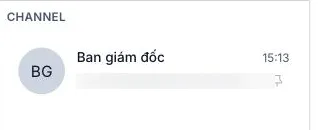
Illustration of the Channel list
Two kinds of channel
| Kind | Who creates it | Membership |
|---|---|---|
| Organisation channel | Built by the system from the clinic's structure | Synced by department or by branch — join a team and its channel is simply there; move on and you are out |
| Your own channel | Created by staff from the Directory | You pick the members |
The synced ones save the most work: new hires, transfers, a new branch — membership keeps itself right, and nobody has to remember to add or remove anyone.
Creating a channel
Open the Directory, click Select multiple, tick the people you need and give it a name:
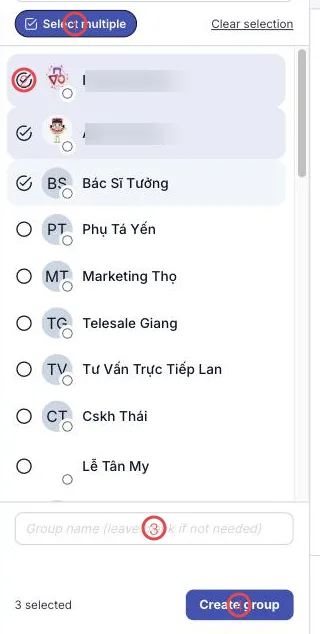
Illustration of creating a channel from the Directory
| Area | What it does |
|---|---|
| 1. Select multiple | Turns on tick-boxes so you can pick several people. |
| 2. The tick box per person | Choose members. The count shows bottom left. |
| 3. Group name | Give a name and you get a channel; leave it blank for an unnamed group of 2–7. |
| 4. The create button | Creates the conversation with whoever you ticked. |
Public channels
A channel can be public: everyone in the company sees it under Discover channels and can join by themselves, no invitation needed. Whoever joins reads the channel's whole history — which suits announcement channels and knowledge-sharing channels perfectly.
A channel that isn't public is visible only to the people added to it.
"Weekend shift" still makes sense a year later; "Lan and the team" means nothing in six months. A name that states the job makes it findable and easy to hand over.
Related
- Staff Directory — where channels are created and found.
- Mentioning a colleague — reaching the right person in a busy channel.
- Conversation filters — filtering the channel list.
- Organisation channels — the admin side: department, branch and public channels.