The Internal Chat Screen
The module works two ways and you switch whenever you like: a chat bubble floating over whatever you are doing, or full screen when you need to read properly and search.
The chat bubble — answer without leaving the job
Mid-way through a customer record, looking at the appointment list, somebody messages you: click Internal chat in the top bar, the bubble opens on the right, answer, close it, and you are back exactly where you were.
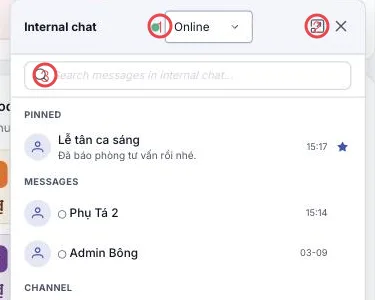
Illustration of the Internal chat bubble
| Area | What it is |
|---|---|
| 1. Status | The coloured dot and your current status — see Setting your status. |
| 2. Expand to full screen | Switches to the full screen view. |
| 3. Search | Find old messages without leaving the bubble. |
Below sits the conversation list grouped into PINNED, MESSAGES and CHANNEL — click a row to open it.
Full screen — when you need to work properly
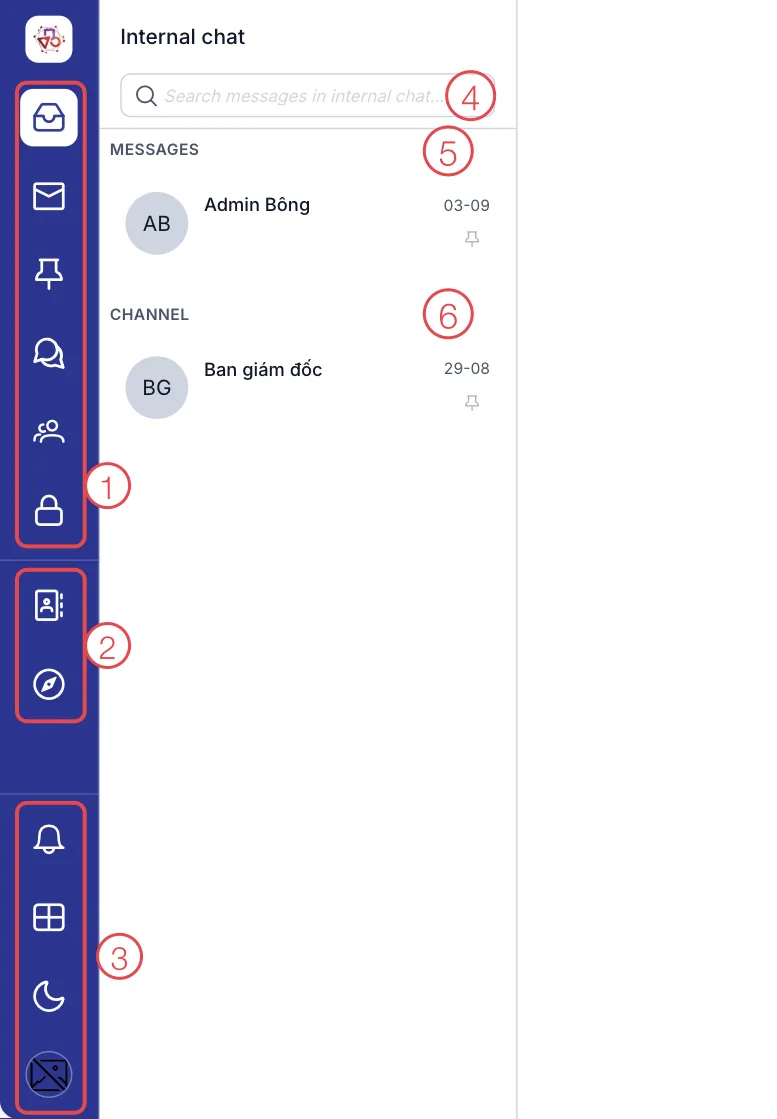
Illustration of the Internal chat screen
| Area | What it is |
|---|---|
| 1. Conversation filters | The left strip: All, Unread, Pinned, Messages, Channels, Record discussions — see Conversation filters. |
| 2. Directory and Discover channels | Find a colleague to message, and browse public channels to join. |
| 3. Shared tools | The notification bell, System modules, the dark mode button, and your account. |
| 4. Search | Find a message across every internal conversation. |
| 5. MESSAGES | Direct messages and small groups. |
| 6. CHANNELS | The channels you belong to. |
Click a conversation and it opens in the middle; the right-hand panel lists that conversation's members.
Internal messages ring the software's own bell, not a separate app. There is only one place to watch.
Related
- Conversation filters — the six filters on the left.
- Setting your status — online, busy, offline.
- Sending a message — the composer and its buttons.