Message Actions
Hover a message and three buttons appear beside it:
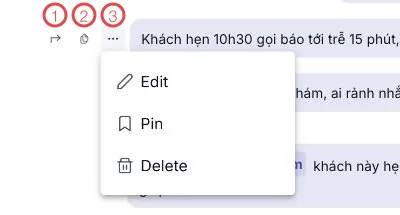
Illustration of the actions on a message
| Button | What it does |
|---|---|
| 1. Reply | Replies to that message; yours carries a quote of it. |
| 2. Copy | Copies the message text. |
| 3. … | Opens the Edit · Pin · Delete menu. |
| Menu item | Result |
|---|---|
| Edit | Change the text; the message is marked edited so everyone knows. |
| Pin | Puts the message on the pin bar at the top of the conversation. |
| Delete | Removes it; the spot reads Message deleted. |
Replying to an older message
Click Reply and the original appears as a quote strip above the composer:

Illustration of replying to a message
| Button | What it does |
|---|---|
| 1. ✕ | Cancels the reply and goes back to an ordinary message. |
Type and send — your message carries the quote, so readers know what it is about even when the original has scrolled away.
Pinned messages
A pinned message sits on the pin bar at the top of the conversation, visible however far you scroll:

Illustration of the pin bar
| Area | What it is |
|---|---|
| 1. The pin bar | The conversation's pinned message. Click to jump to the original. |
Unpin it by opening the … menu on that message again and choosing Unpin.
Pin what the channel needs daily
The on-call number, the link to the rota, a new rule — pin one message and everyone entering the channel sees it without scrolling back.
Related
- Sending a message — the composer.
- Conversation filters — pinning a whole conversation, which is different.