Searching Messages
Something agreed three months ago can still be pulled up. The search box sits at the top of the conversation list.
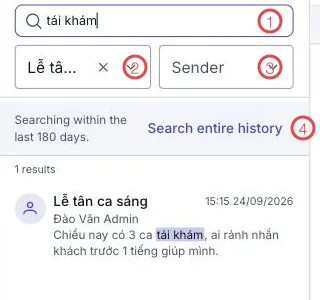
Illustration of searching messages
| Area | What it does |
|---|---|
| 1. The keyword box | Type what you're after, at least 2 characters. |
| 2. Conversation filter | Narrows to one channel or chat. Click ✕ to drop it. |
| 3. Sender | Only messages from one person. |
| 4. Search entire history | Widens beyond the default time window. |
Reading the results
The software states the time window it is searching and returns a result count. Each result carries the conversation name, the sender, the time and the matching text with the keyword highlighted. Click a result to jump straight to that message in context.
Nothing found? Click Search entire history to sweep the lot.
Quick ways in
| Looking for | Do this |
|---|---|
| Something agreed in one channel | Pick that channel in 2, then type the keyword. |
| What somebody said | Pick the name under Sender, with or without a keyword. |
| Everything about one customer | Search the customer's name — search also matches the customer (patient) chips attached to messages. |
Write keywords now, find them later
Send "shift swap 25/09" rather than "swapping shifts" — three months later, typing 25/09 finds it instantly.
Related
- Attaching a customer to a message — chips make customers (patients) findable.
- Conversation filters — filter before you have to search.