The arrival workflow
From the moment a customer (patient) walks in until they leave, the clinic needs three timestamps: when they arrived, when treatment started and finished, and when they left. Record all three and you can answer the everyday questions later: how long people wait, how long a case actually takes, and why someone left without booking treatment.
This page follows the order reception works in. Clinics doing medical examinations work from a different screen — see the Reception section at the end.
The whole workflow at a glance
| # | At the desk | What you do in the software |
|---|---|---|
| 1 | The customer has an appointment | Click the orange button on their row → check in |
| 1' | The customer is not in the system | Create the customer and enter the time on the Check-in / Appointment tab |
| 2 | They are consulted or examined | — |
| 3a | They agree to the service | Record the session: start time and end time |
| 3b | They do not go ahead | Record the reason and a note |
| 4 | They leave | Reopen the dialog → check out |
| Task | Usually done by |
|---|---|
| Checking the customer in | Reception |
| Consulting, agreeing the service | Consultant / doctor |
| Recording treatment times | Doctor, assistant |
| Checking the customer out | Reception or the consultant |
Step 1 — The customer already has an appointment
Open CRM › Appointment › Appointment list to see who is booked today.
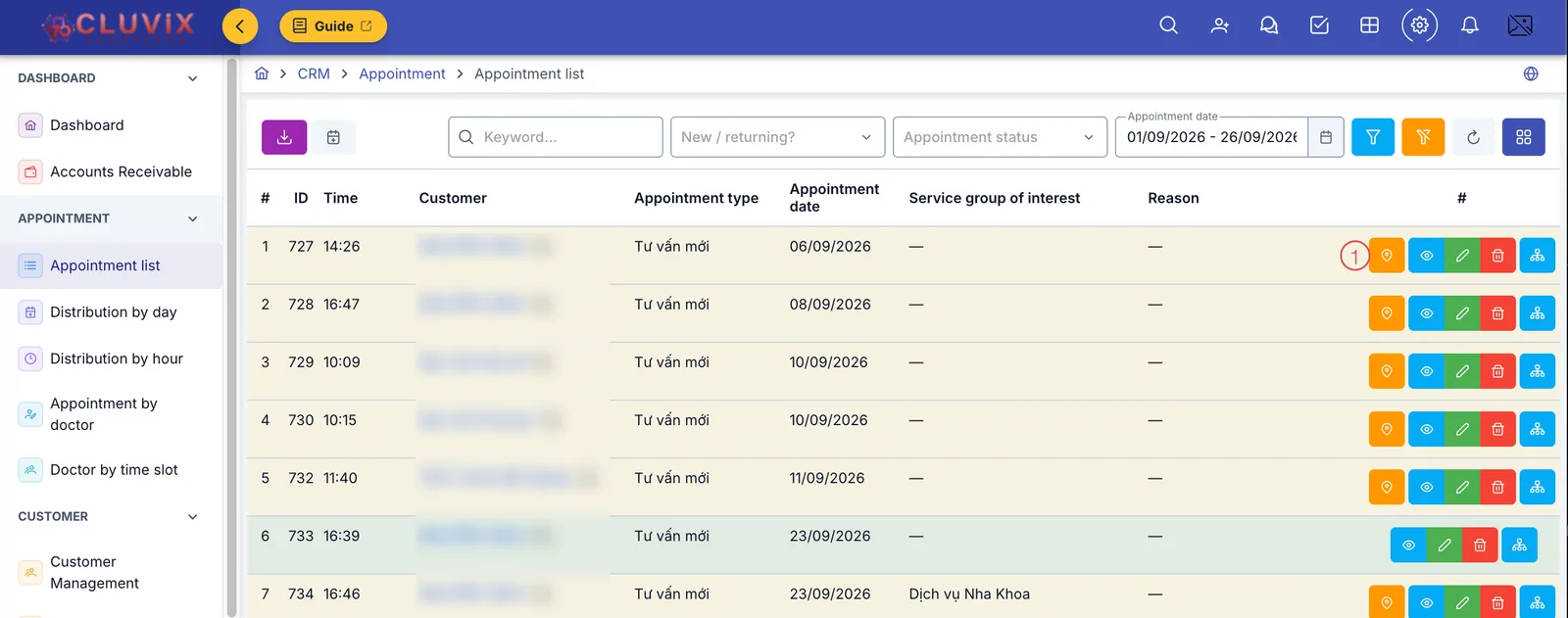
The Appointment list screen
The orange button numbered 1 at the end of each row is the check-in button. When the customer reaches the desk, click it on their row. The names are blurred in the illustration.
Once a row is checked in the orange button disappears — like row 6 in the picture. It is the quickest way to see who has arrived and who has not.
The second way, handy when the customer rings ahead or you already have their file open: go to CRM › Customer Management, open the customer and switch to the Appointment tab.
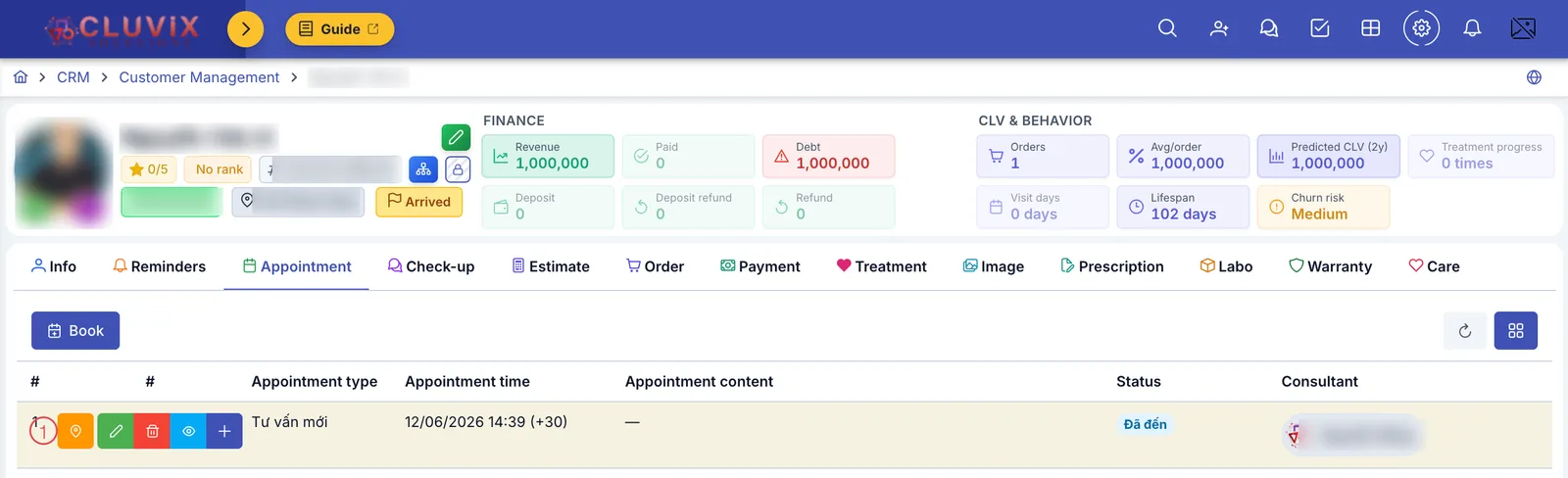
The Appointment tab in a customer file
The orange button numbered 1 on the appointment row does the same thing as on the list. The Status column shows where that appointment has got to.
Step 2 — The customer is not in the system yet
Someone who walks in without ever booking gets a new file, and you enter the check-in time while creating it — no need to save first and check in separately.
Click Add new customer, fill in the Info tab as usual, then switch to the Check-in / Appointment tab.
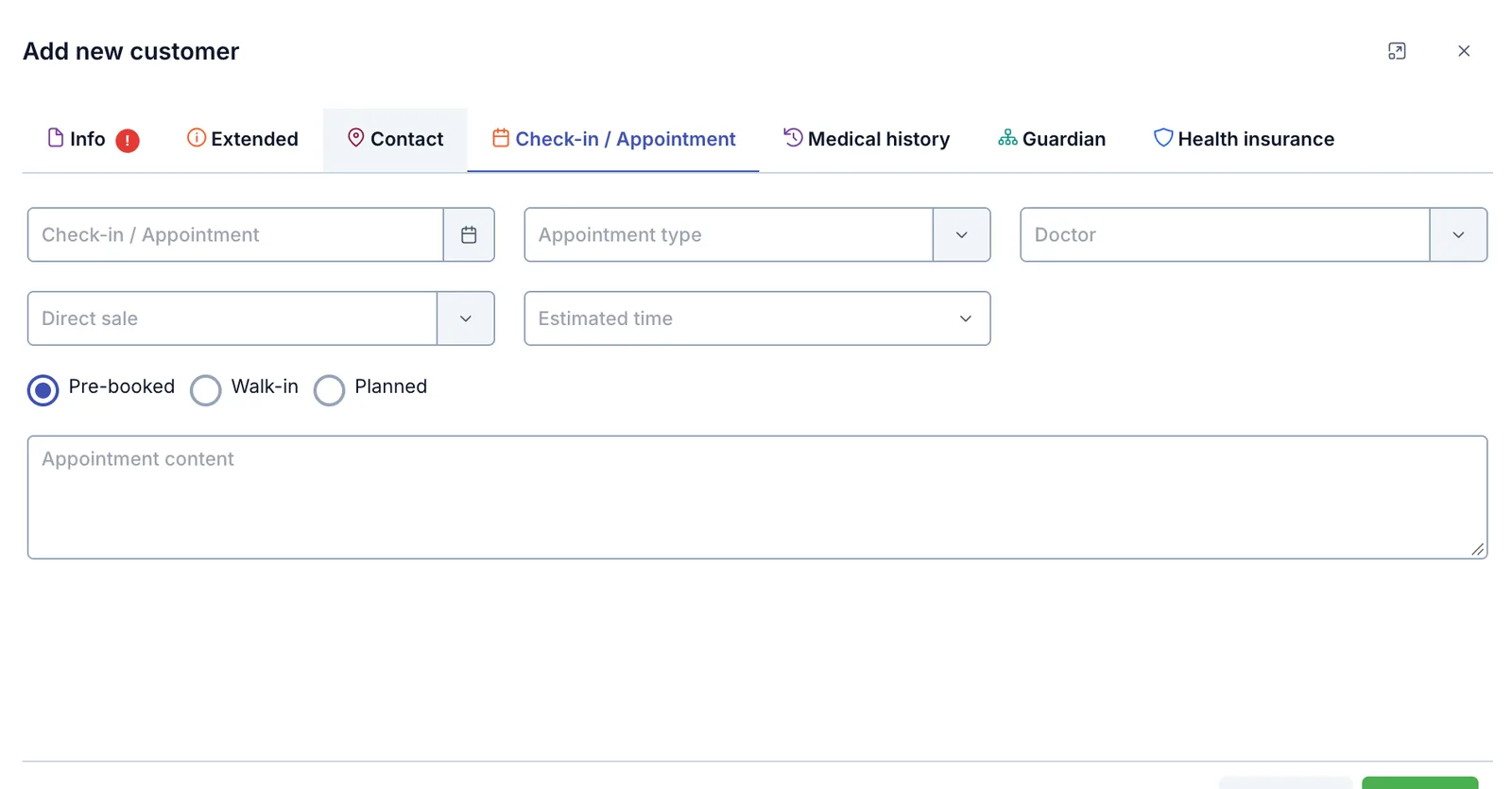
The Check-in / Appointment tab when creating a customer
| Field | What goes in |
|---|---|
| Check-in / Appointment | When the customer arrived. With them standing in front of you, pick the current time. |
| Appointment type | What they came for — a new consultation, a follow-up. |
| Appointment doctor | Who will see them. |
| Direct sale | The staff member directly responsible for this customer. |
| Expected time | Roughly how long the visit will run. |
| Appointment content | A quick note of what they asked for. |
The three choices underneath — Advance booking · Walk-in · Planned — record where the visit came from. Somebody who turns up unannounced is a walk-in, and that is what lets the reports later separate booked visits from walk-ins.
Step 3 — Check-in and check-out
The orange button from step 1 opens the Customer arrived dialog. You use this dialog twice for the same visit: the top half when they arrive, the bottom half when they leave.
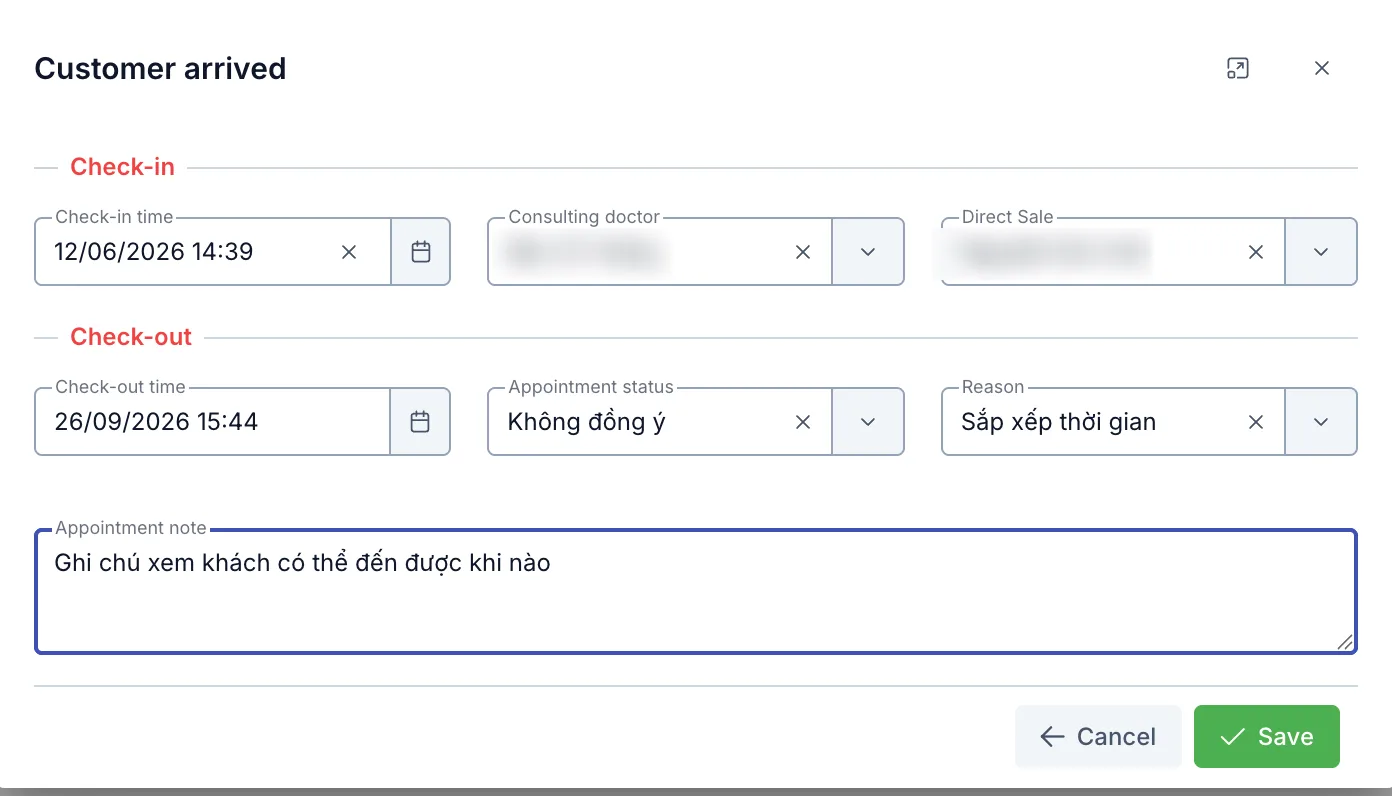
The Customer arrived dialog
On arrival — fill in the Check-in section:
| Field | What goes in |
|---|---|
| Check-in time | When the customer arrived. The current time is filled in for you. |
| Consulting doctor | Who is seeing and advising them today. |
| Direct Sale | The staff member directly responsible. |
Click Save and that is it. The appointment moves to Arrived, and the customer's file shows the matching label. You never pick the status yourself — a check-in time is what moves it.
After saving, reception carries on as normal: seat the customer, tell the doctor, get the file ready. The only point of this step is to record the moment they walked in.
On leaving — reopen the dialog and fill in the Check-out section:
| Field | What goes in |
|---|---|
| Check-out time | When the customer left. |
| Appointment status | How the visit ended — whether they agreed to the service. |
| Reason | Why it ended that way. |
| Appointment note | The specifics, in your own words. |
This is the step most often skipped and the one worth the most later. "Did not agree" on its own leaves the colleague who calls next week with nothing to open on. "Weighing up the cost, call back after payday" or "busy, wants to move it to the weekend" gives them somewhere to start.
It is worth doing for a yes as well: why they agreed, and what they were still unsure about.
The Appointment status and Reason lists are set up by each clinic in Configuration, so the options on your screen may differ from the illustration. Pick whichever is closest to what really happened.
Step 4 — Looking at one appointment
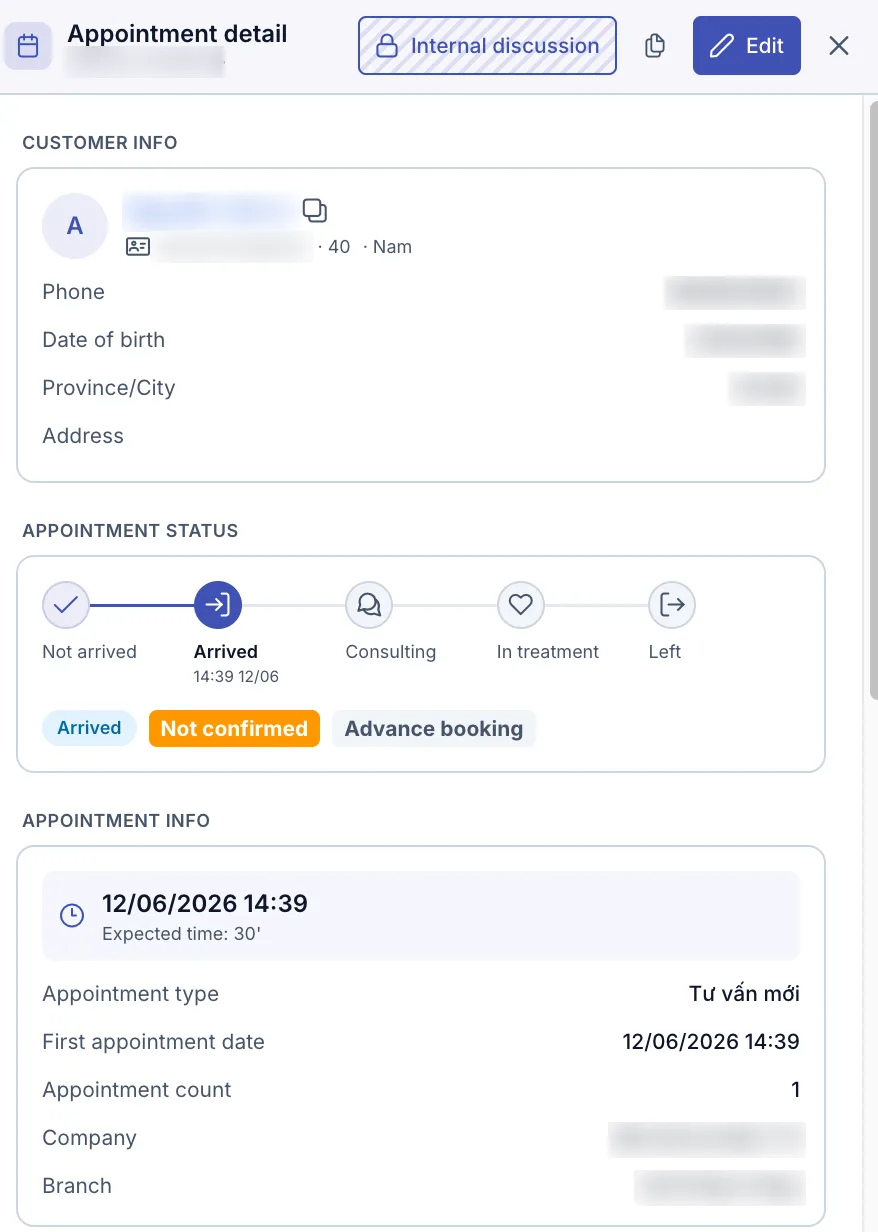
Click the view button (the eye) on an appointment row and an Appointment detail panel slides out from the right.
The Appointment detail panel
It gathers everything you need without leaving the screen you are on:
- CUSTOMER INFO — name, age, phone, date of birth, address. Blurred in the illustration.
- APPOINTMENT STATUS — the five stages Not arrived › Arrived › Consulting › In treatment › Left. The current stage is highlighted with the time it was recorded, so a glance tells you where the customer is and since when.
- The three labels below show whether they have arrived, whether the appointment was confirmed, and whether it was booked in advance or is a walk-in.
- APPOINTMENT INFO — the booked time, expected duration, appointment type, how many times they have booked, and the branch.
Internal discussion at the top opens an internal chat channel tied to this exact appointment, so staff can talk without the customer seeing. Edit opens the appointment form.
Step 5 — Recording treatment times
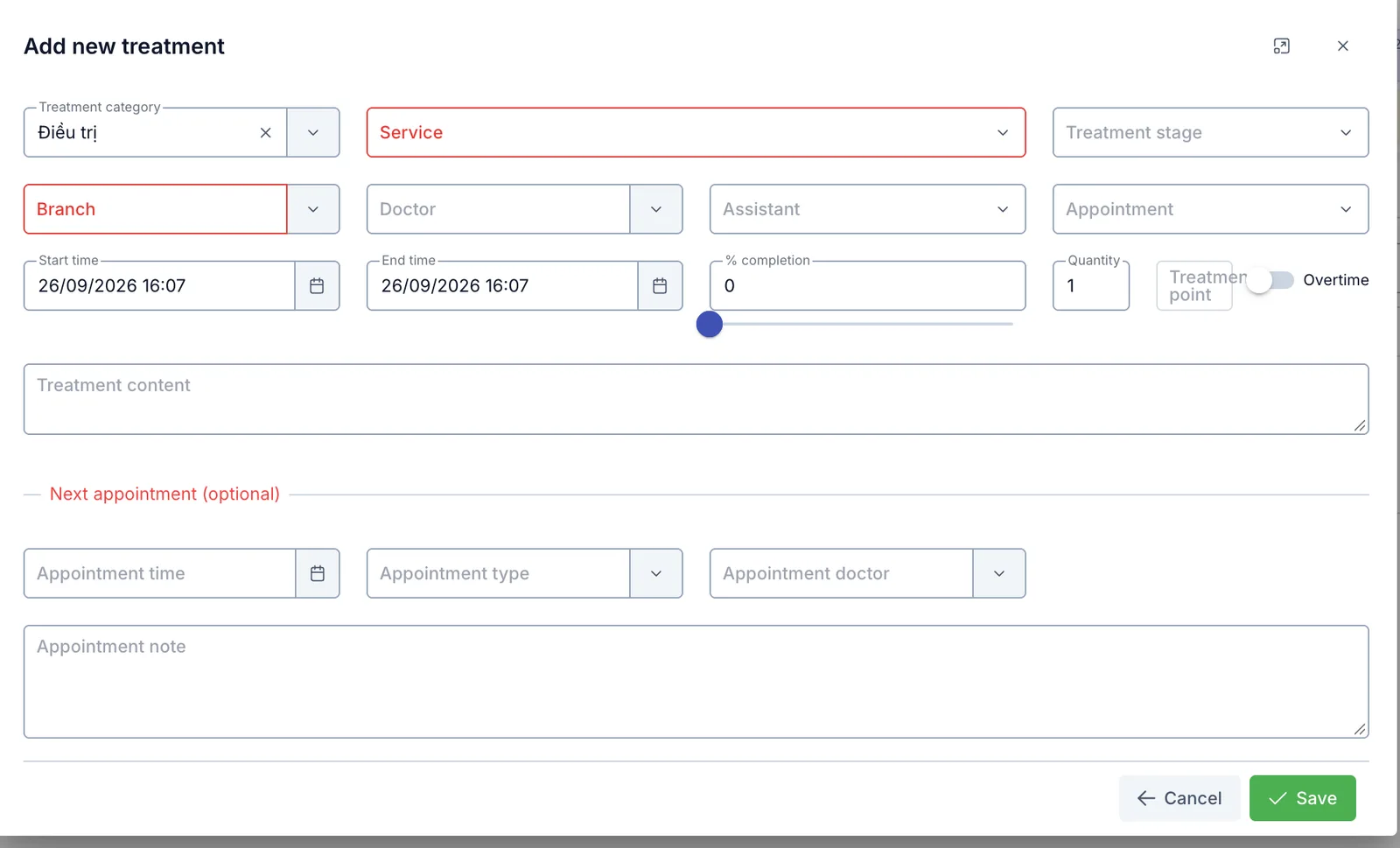
Once the customer agrees, open their file, go to the Treatment tab and add a treatment session.
The Add new treatment dialog
The two fields that matter most here are Start time and End time — the stretch the customer actually spent in the chair. Alongside them:
| Field | What it does |
|---|---|
| Treatment category, Service, Treatment stage | What this session covers and where it sits in the course. |
| Branch, Doctor, Assistant | Where it happened and who did it. |
| Appointment | Ties the session to today's appointment. |
| % completed | Drag the slider to match progress on the service. |
| Treatment content | What was actually done. |
| Next appointment (optional) | Book the follow-up while the customer is still sitting there. |
The picture above is the treatment screen for dental and aesthetic clinics. Other specialities may show a different set of fields — but all of them have a start time and an end time, which is the part that matters here.
When treatment is finished and the customer leaves, go back to step 3, open Customer arrived and fill in the Check-out section. That is what moves the appointment to its final stage, Left.
Clinics doing medical examinations: use the Reception screen
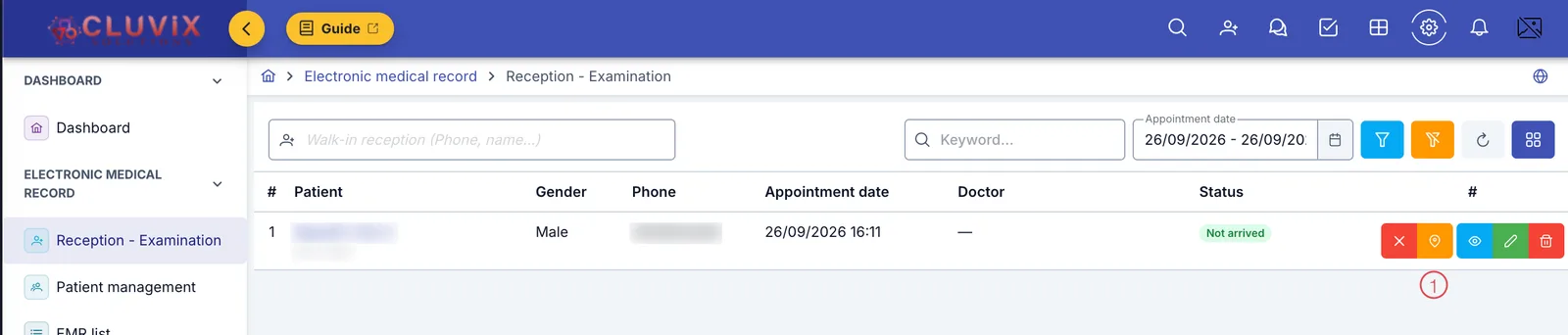
A clinic running electronic medical records works from Electronic medical record › Reception - Examination instead of the appointment list. The idea is identical — check in on arrival, check out on the way out — except the check-in form here also takes vital signs.
The Reception - Examination screen
The list shows only the patients for the selected day, with gender, phone, appointment time, doctor and Status. The orange button numbered 1 is the check-in button, just as in CRM. Names and phone numbers are blurred in the illustration.
The Walk-in reception (Phone, name...) box in the top left is for patients who turn up without an appointment: type a phone number or a name to take them in directly, with no appointment to create first.
The Reception check-in form
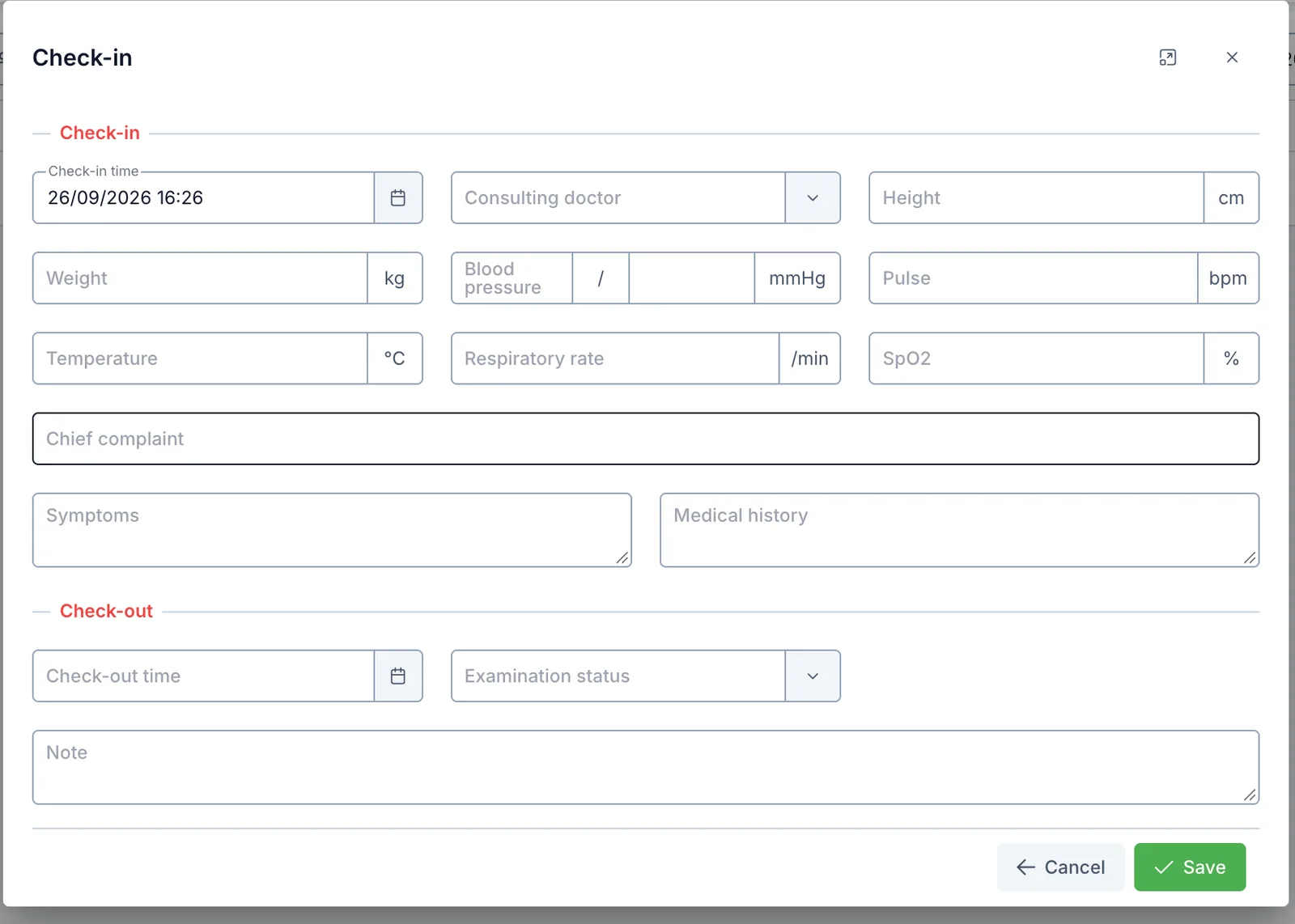
The Customer arrived dialog on the Reception screen
Besides Check-in time and Consulting doctor, the Check-in section has room for the vital signs taken at the desk: Height, Weight, Blood pressure, Pulse, Temperature, Respiratory rate and SpO2. Below them sit Reason for visit, Symptoms and Medical history.
Fill in whatever was measured — none of it is compulsory. Entering it here means the doctor opens the record with the figures already in it, instead of asking the patient again.
The Check-out section holds Check-out time, Examination status and Note, filled in when the patient is done and leaves.
The Reception screen uses Examination status, while CRM uses Appointment status. They serve different purposes: one tracks the visit, the other tracks the outcome of the sales consultation.
Notes and photos from the visit
If something during the visit is worth keeping — a complaint, a skin reaction, before and after photos — put it in the customer's own file, not in the appointment note. The file has an Image tab for photos and a Care tab for each contact, and anything there travels with the customer to every future visit.
The Appointment note in the Customer arrived dialog should only hold what happened today.
How the status changes
| What you do | The appointment becomes | The customer file |
|---|---|---|
| Nothing yet | Not arrived | Unchanged |
| Save a check-in time | Arrived | Shows the arrived label |
| Start consulting | Consulting | Unchanged |
| Record a treatment session | In treatment | Unchanged |
| Save a check-out time | Left | Follows what you picked in Appointment status |
Frequently asked questions
Checked somebody in by mistake? Reopen Customer arrived, clear Check-in time with the ✕ in the field and save. Clearing the check-in time also clears what depends on it, so only do it when it really was a mistake.
The customer arrived and left again without doing anything? Check them in and out anyway, with the status and reason that match. Do not leave it blank — a visit with nothing recorded tells nobody anything afterwards.
The customer arrives much earlier or later than booked? Record the real time they turned up, do not round it to the booked time. The gap between booked and actual arrival is exactly what tells you whether the clinic's schedule reflects reality.
One customer, several services in the same visit? Add several treatment sessions, one row per service with its own start and end time, then check out once when they leave.
Related
- Appointment or reminder? — picking the right one when the customer first calls.
- When does a customer count as agreed? — how the check-out result feeds the reports.